
It’s the middle of an ordinary afternoon. You’re hunting down a file you need or chasing a link someone sent in a message. A page loads with a familiar prompt in the middle: "Prove you’re human."
You’ve seen it a thousand times.
Maybe it’s the little square box you tick. Maybe it’s asking you to pick out every photo with a crosswalk, a bus, or a traffic light. You barely think about it—you tick the box, select the images, and move on. It’s just the internet clearing its throat before letting you through.
Because we encounter these checks dozens of times a day, our guard is completely down when a new, sinister variation appears.
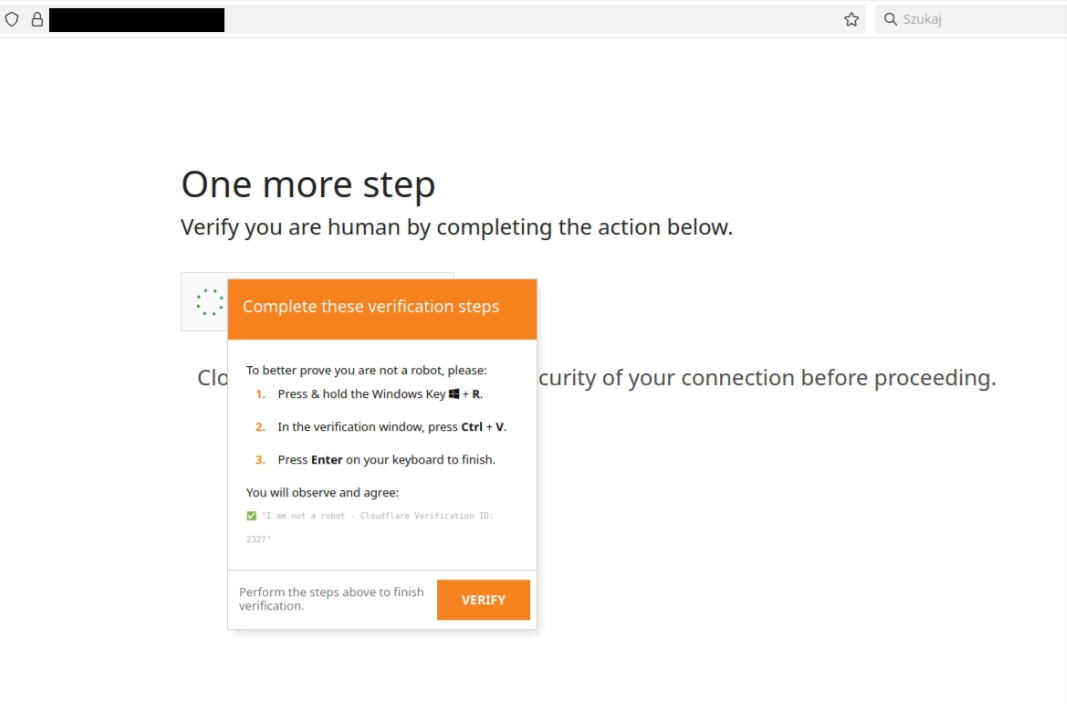
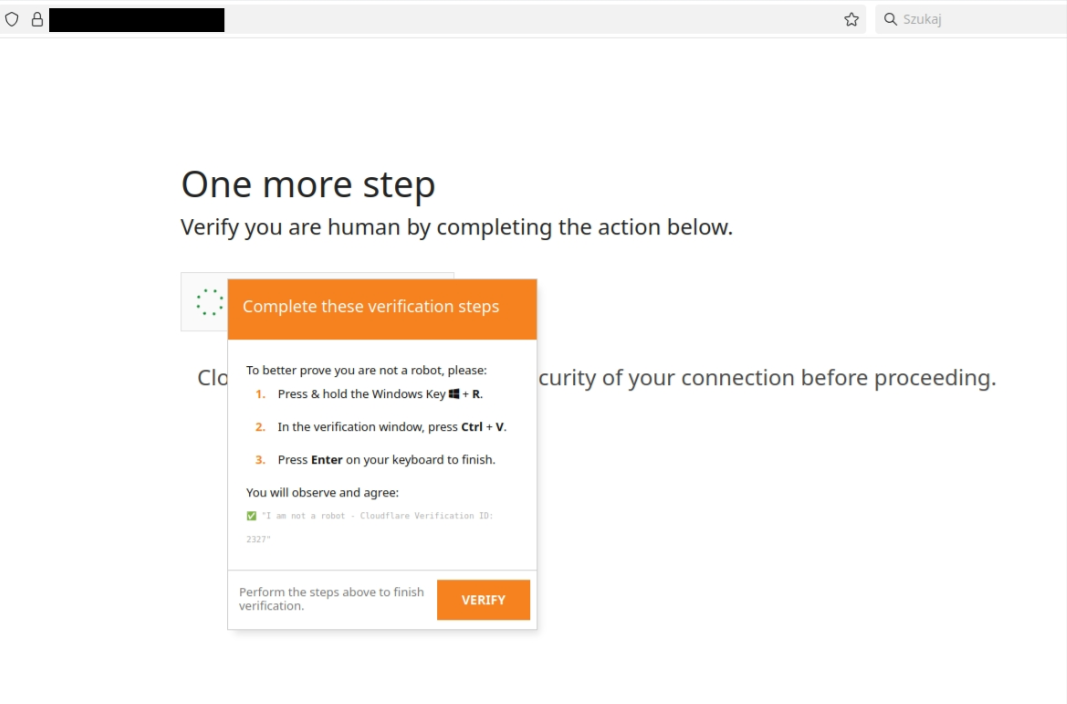
Example of a fake human verification attack Source: CERT Polska/ ClickFix in action: How fake captcha can lead to a company wide attack
The Trap: When "Verification" Asks for Action
Imagine this scenario: you click a link, and instead of a checkbox, a popup tells you the browser couldn't automatically verify your session. It instructs you to perform a quick sequence to "fix" the connection:
Press
Win + R(orCmd + Spaceon Mac) to open a small system window.Press
Ctrl + Vto paste a system verification key.Press
Enterto confirm your identity.
It looks sleek, official, and urgent. But if you follow those instructions, you aren't verifying your identity—you've just manually executed malicious code on your device.
Breakdown: Why This Security Threat Works
To stay safe, it helps to understand why this specific social engineering tactic (often referred to as a ClickFix or clipboard-based PowerShell attack) is so effective.
1. Why don't endpoint & network protections block it automatically?
Because you carry out the final step by hand.
Traditional security tools scan incoming web traffic for known malicious file downloads or hidden exploits. In this attack, the web page isn't downloading an executable file onto your drive. Instead, the site silently copies a malicious command (like a PowerShell script) directly into your clipboard. When you open the Windows "Run" dialog and paste the text, your operating system trusts you—not the browser—so security filters are completely bypassed.
2. What is the biggest warning sign on these pages?
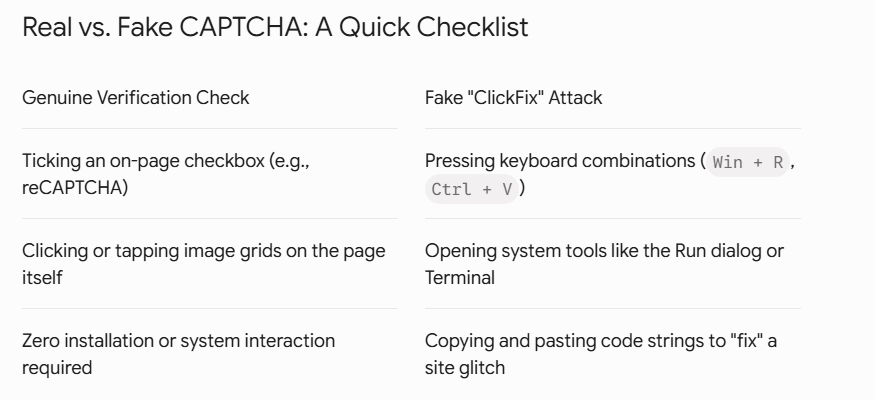
Any web page asking you to open a system window or hold down keyboard shortcuts.
A browser should never ask you to perform OS-level troubleshooting steps to view a standard webpage. The moment a site directs you to hold down key combinations, open system terminals, or execute clipboard commands, that requirement is the warning sign itself. Close the tab immediately without following any steps.
3. Why should your unfamiliarity raise alarms?
Your unfamiliarity with that window is the exact signal that something is wrong.
Most people go years without ever opening the Windows Run box or command terminal on purpose. Attackers rely on your slight hesitation and confusion, hoping you'll assume it's just an obscure technical requirement. If an action feels unnatural or unfamiliar during standard web browsing, trust that instinct—it means you're being led outside safe browser boundaries.
What to Do If You Realize Halfway Through
If you ever catch yourself mid-process—you’ve pressed the keys and pasted the text, but haven’t pressed Enter yet—do not panic, but act swiftly:
STOP immediately. Do not hit
Enteror click "OK".Close the terminal window and terminate the browser tab.
Report the incident to your IT or Information Security team right away so they can clear your clipboard and run a diagnostic check.
By staying alert to these subtle shifts in attacker tactics, you keep your workstation—and your network—safe from stealthy intrusions.
Ready to see where your company defenses stand?
👉 Request your customized cyber vulnerability report today and stay ahead of threats.
👉 Gain insights into your unique cybersecurity vulnerabilities with a custom report.
👉 Train your team to be your first line of defense
📞 Schedule a call today or 📧 contact us for a consultation.